New Feature: Use your Product Library to amend shop imports

Amend details for imported shop orders using your Product Library
Use your Product Library to make updating shop order details faster and easier.-
Watch video
Quickly update individual item details using your Product Library
Use saved data from your Product Library to speedily amend item details for imported shop orders.
More information -
Watch video
Automatically fill in or replace details using your Product Library
The information saved to your Product Library can also be used to amend data for imported shop orders automatically – either wholly replacing imported data or filling in missing fields.
More information -
Watch video
Automatically save imported items to your Product Library
Any product data you import from shop orders can be saved automatically to your Product Library – and then easily re-used for future orders.
More information
What is the Product Library?
The Product Library is a tool for storing and easily re-using product details, including descriptions, commodity codes, country of origin, weight and value.
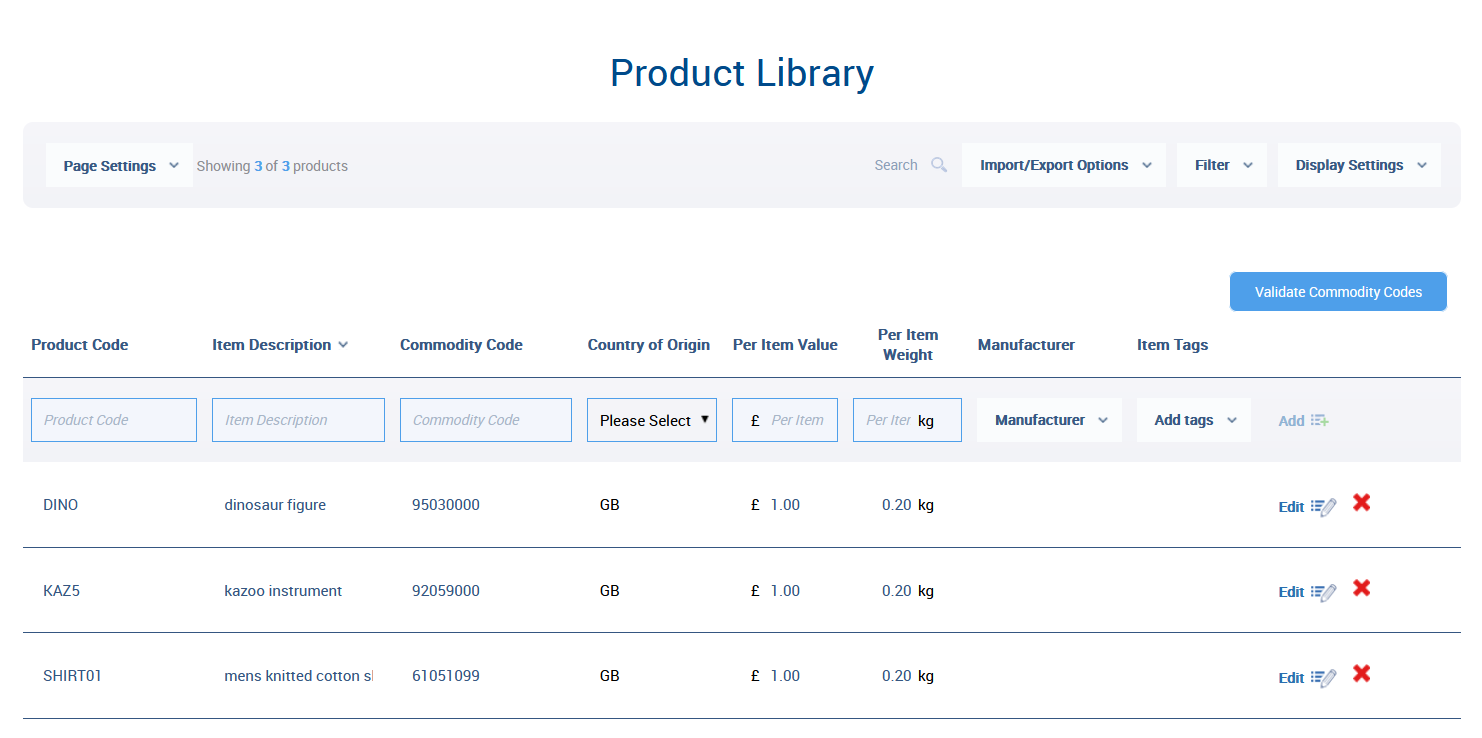
For more information on how to add to and manage your Product Library, please refer to our dedicated tutorial.
Using your Product Library to manually edit imported shop orders
Once you have items saved to your Product Library, one of the many ways you can make use of it is by using this information to amend the product details for your imported shop orders.
Please note: This feature is available for international shipments only, as domestic orders do not require contents declarations with product details.
First, head to the orders page for the integration options you’ve set up. For example, Integrations -> Shopify.
Then scroll down to the order you would like to add to or amend.
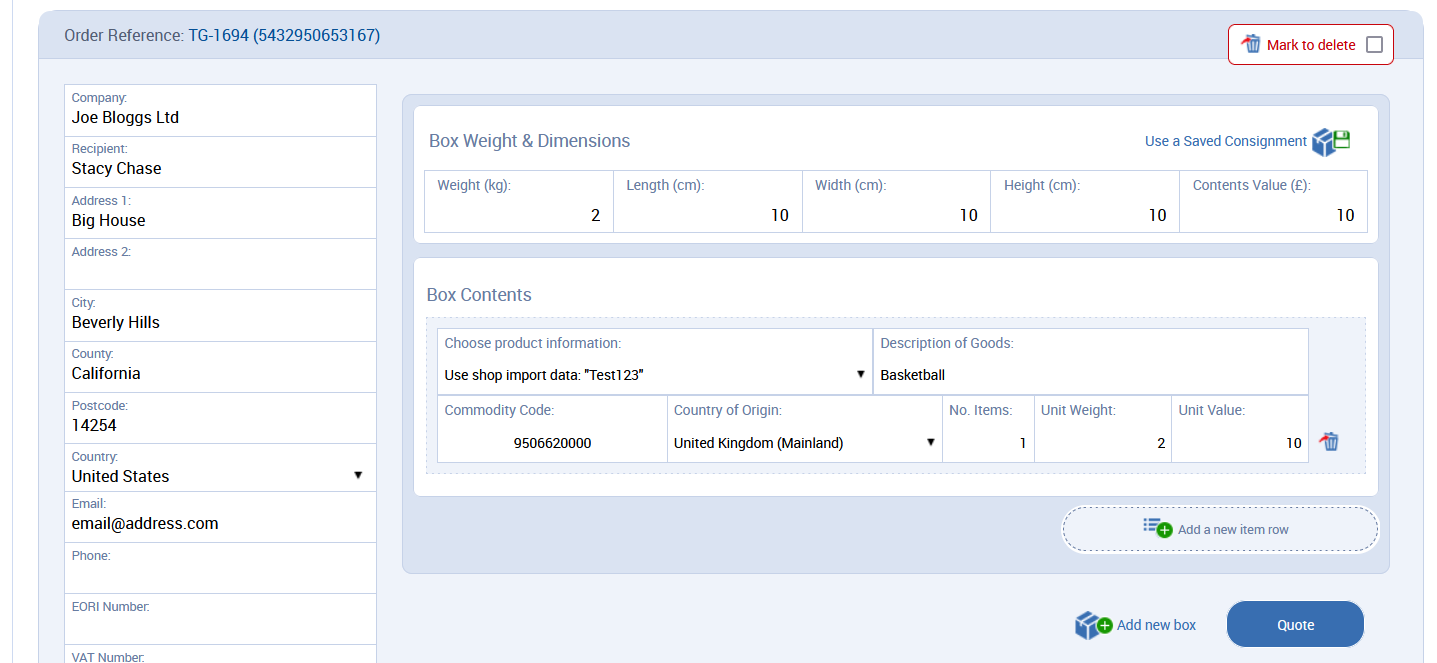
Under Box Contents, for each item there is a field labelled Choose product information, which allows you to choose the source of product information.
By default, Use shop import data will be selected, and it will show the data that was pulled from your shop or e-commerce platform, unless your settings are to use Product Library data automatically (see other features on this page).
However, clicking on this field will give you a dropdown menu with a list of items saved to your Product Library. They will be listed by product reference and/or description.
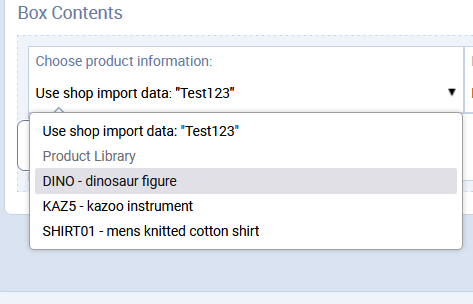
If you select one of these, it will replace all the data for that item with the saved information from your Product Library, including description, commodity code, country of origin, number of items, unit weight and unit value.
You can also add a new item row and use a product from this dropdown menu to fill in all the blanks.
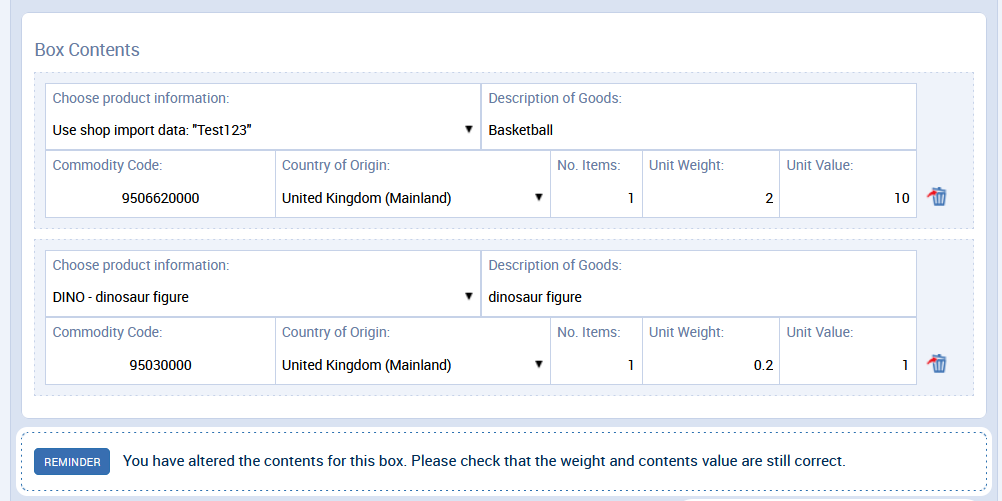
Please note that when amending or adding to imported shop orders, you will need to ensure that the overall box weight and dimensions are updated to match any changes. Then you can proceed to get a quote.
Automatically fill in or replace details using your Product Library
The information saved to your Product Library can also be used to amend data for imported shop orders automatically – either wholly replacing imported data or filling in missing fields.
[Please note: For each item in your Product Library, you can provide a Product Code / Reference, which is a unique name or number of your choice that also serves as an ID code for each item. These are required to make use of the following feature, which looks for code matches between imported and library data.]
On your shop orders page, go to the Settings tab and select Products from the menu.
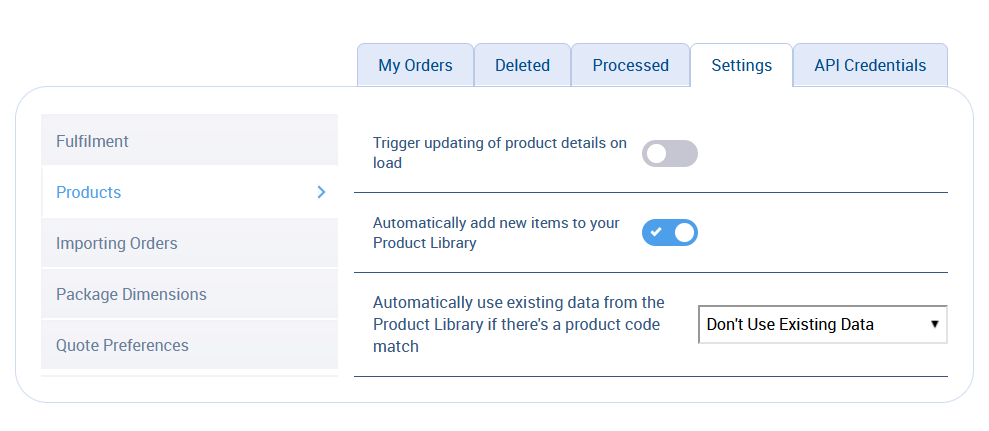
Next to the setting, ‘Automatically use existing data from the Product Library if there's a product code match’, there is a dropdown menu with three options.
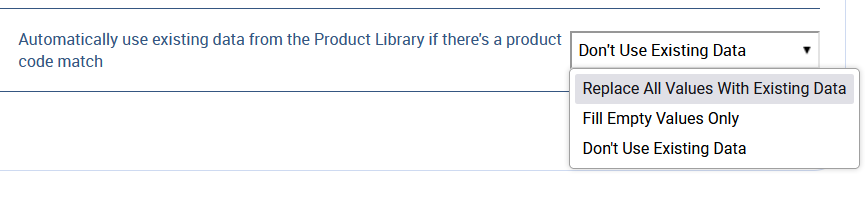
Replace All Values With Existing Data will automatically overwrite any data imported from your shop order with the data already saved to your Product Library, if there is a matching Product Code / Reference.
Fill Empty Values Only will use the Product Library to complete any fields not already completed in the shop import data, if there is a matching Product Code / Reference.
Don’t Use Existing Data is the option to choose if you do not want to automatically use the existing data from your Product Library to add or replace data. You can always do this manually instead, item by item, on your shop orders page.
Please note that even with these automatic settings, you can still manually change the details for individual orders on your shop orders page, with the option to Choose product information.
By default, when automatic replacement is on, this field will show the Product Code from your library that has been used to replace the imported data. However, you can revert to the imported data by switching to Use shop import data. You can also choose a different product from your library, or amend any of the details individually.
Automatically save imported items to your Product Library
Any product data you import from shop orders can be saved automatically to your Product Library – and then easily re-used for future orders.
On your shop orders page, go to the Settings tab and select Products from the menu. Then toggle the option, ‘Automatically add new items to your Product Library’.

You can amend or remove these items from your library at any time by going to Account Tools -> Product Library.